
Get the mobile app
Record your sailing, revisit your trips, and join races from your phone. Connect Veetr Vane when you want wind and instrument data alongside your GPS track.
Explore the five tabs
Screenshots from the iPhone app. Tap any image to see it full size. The Data and Map screens show the app on the water; the remaining screens use simulator examples.
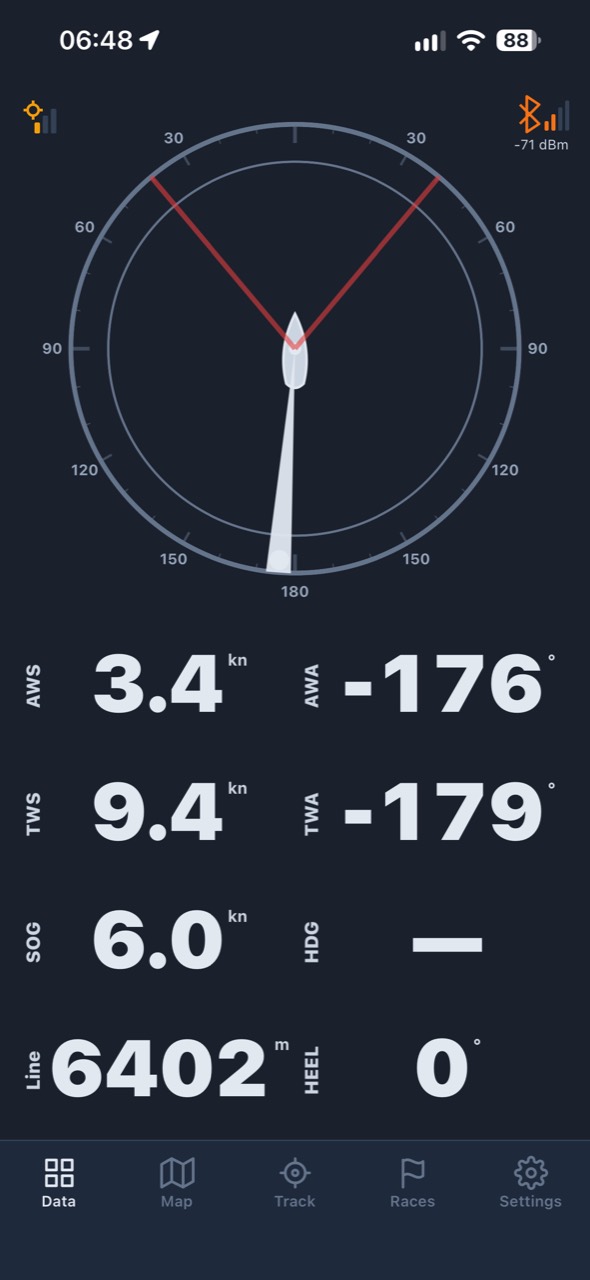
See wind speed and angle, boat speed, heel, and distance to the start line at a glance. Connect Veetr Vane for wind and instrument readings alongside phone GPS data.
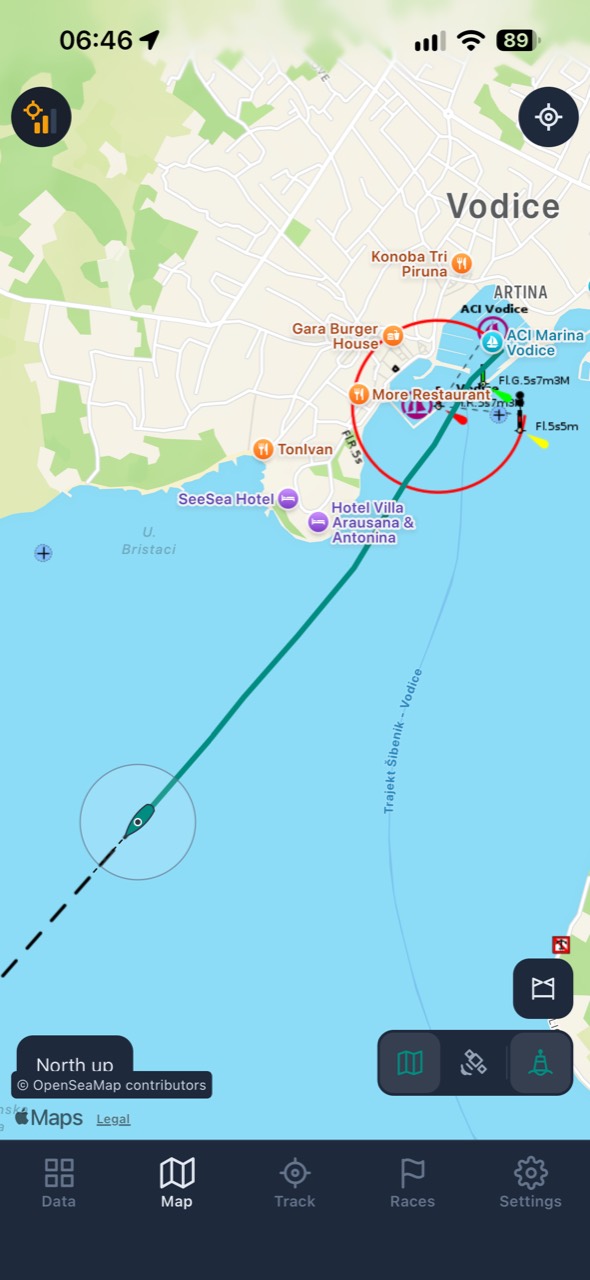
Follow your position and track, switch map styles, and show nautical seamarks. When you join a race, its course is available on the map too.
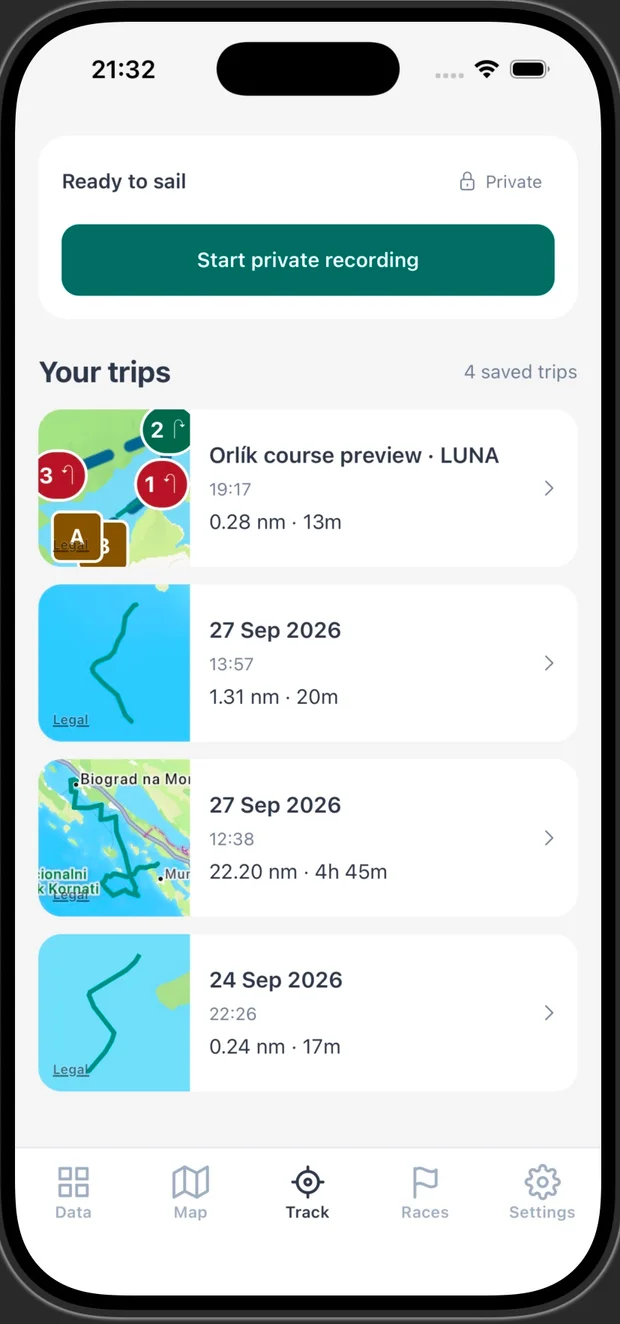
Start a private GPS recording and find saved trips by date, distance, and duration. Phone GPS recording works without Veetr Vane.
Recording and sharing guide →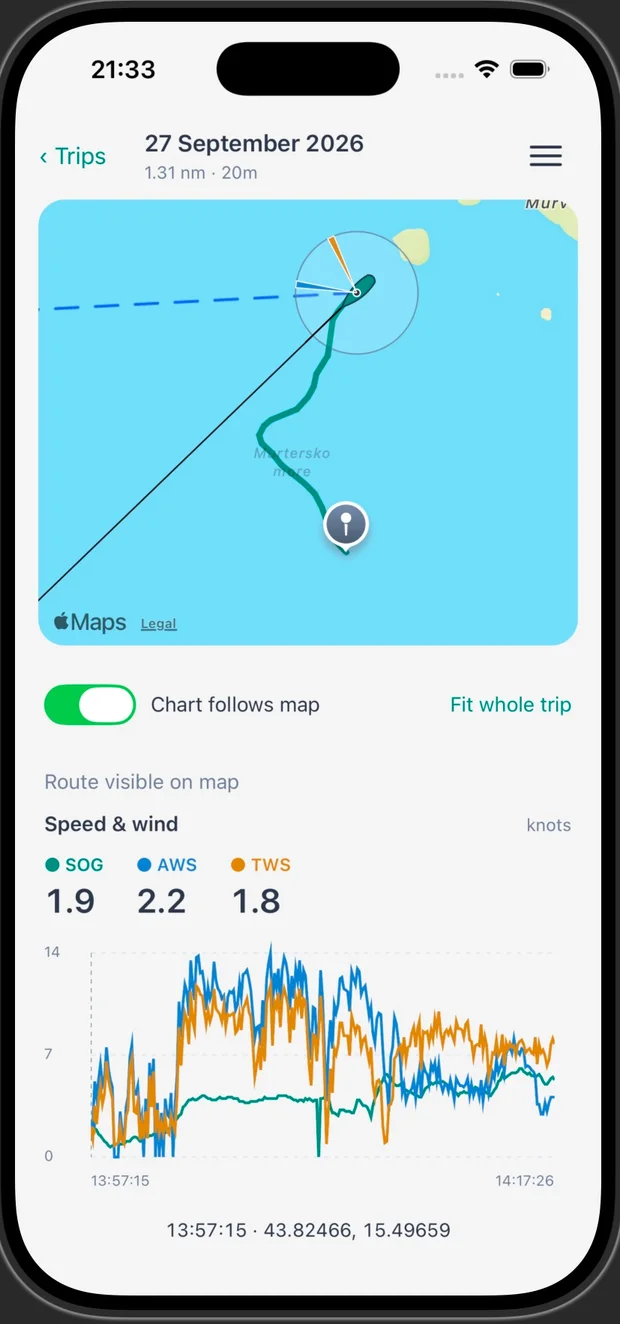
Explore your recorded route and compare speed with wind readings when instrument data was recorded. Move through the trip to see what happened where. Race trips also keep a saved course with their recording.
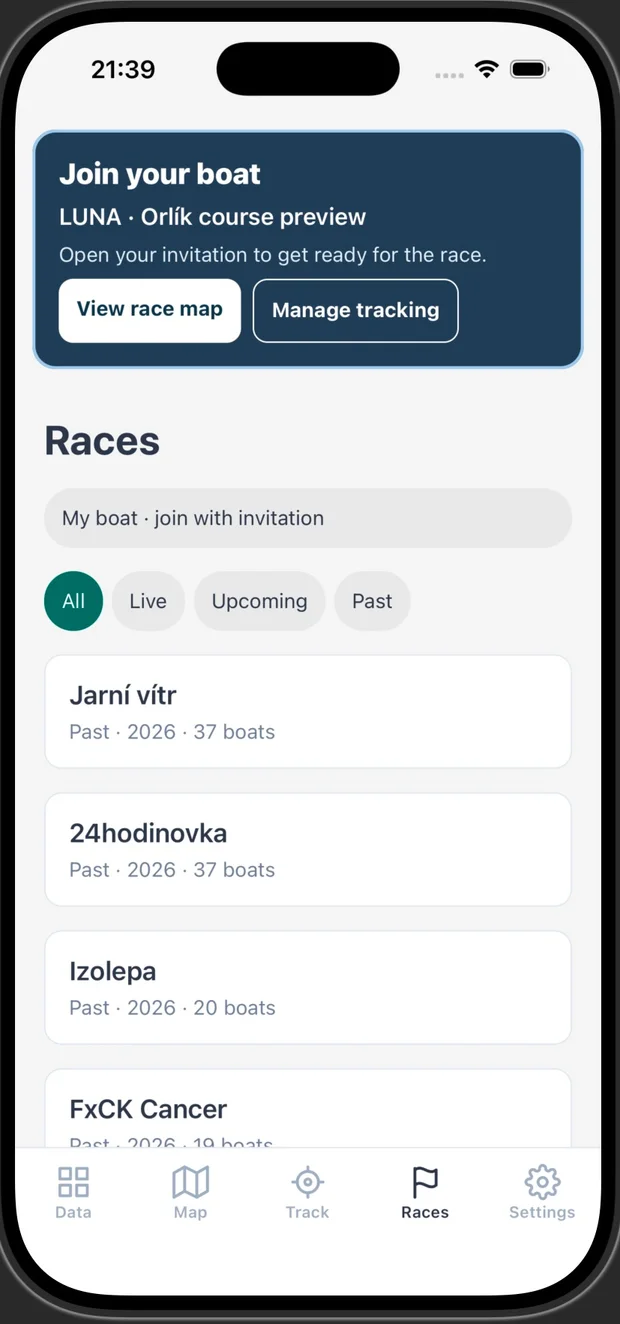
Browse races or open your boat’s invitation to get ready. Your joined race brings its start line and numbered marks into the app.
Racer’s guide →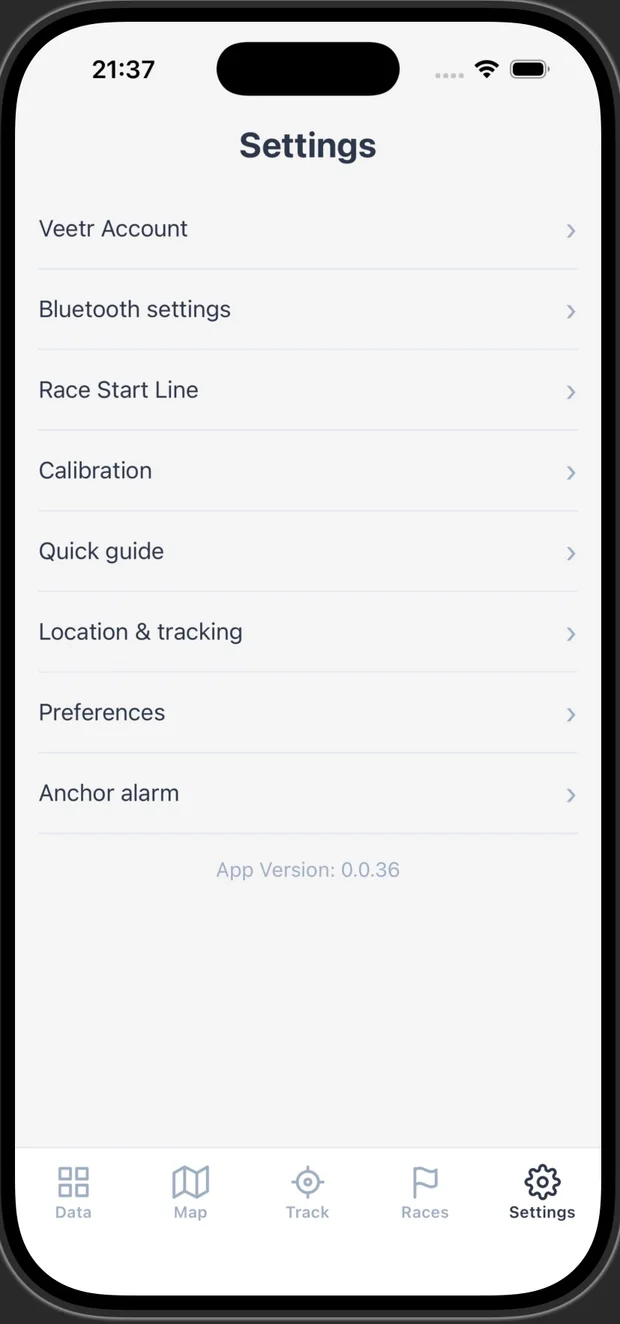
Find account and Bluetooth controls, calibration, location permissions, and preferences. Start-line setup and the anchor monitor are here too.
Start-line and anchor tools
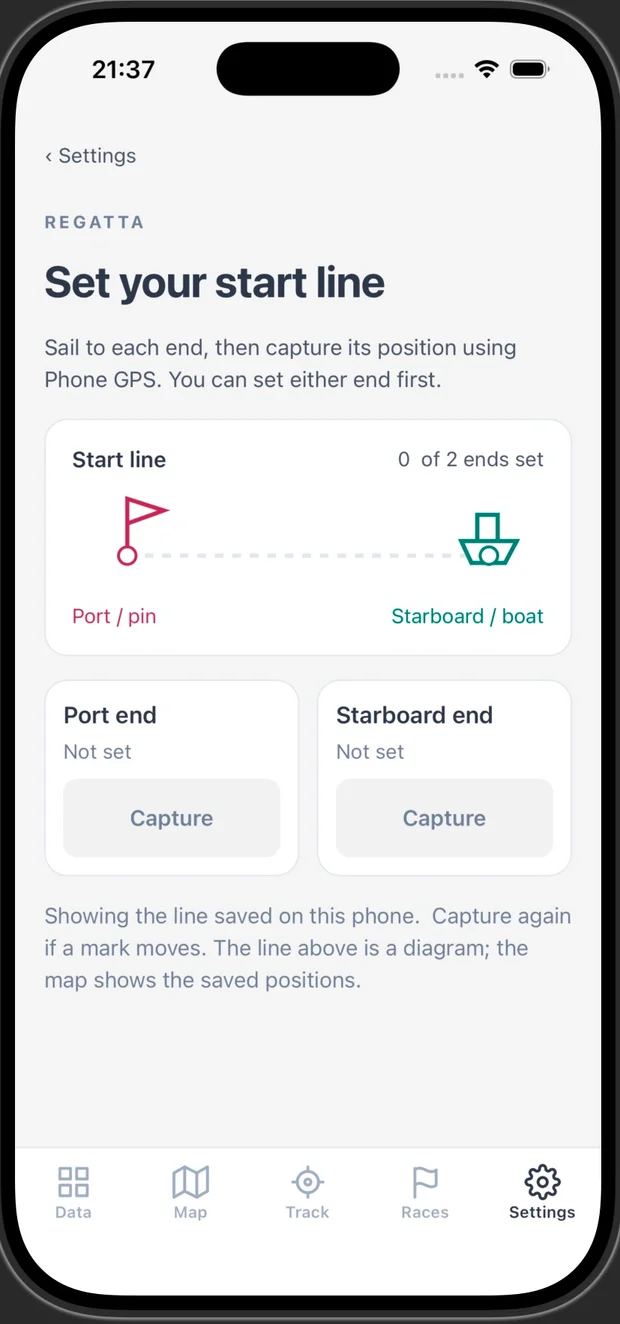
Sail to each end and capture its position with phone GPS. Either end can be set first. This screen stores a line on your phone; it does not edit the referee’s published course.
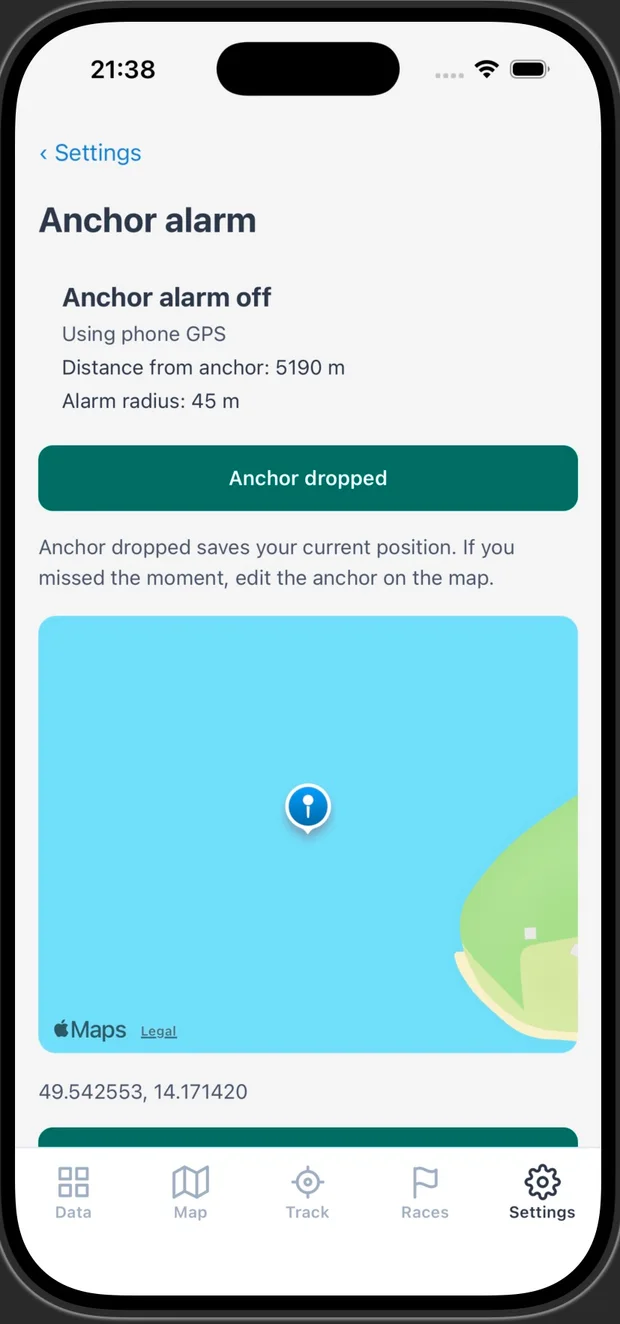
Save the anchor position, set the chain length and extra margin, then start monitoring. You can adjust the anchor on the map and test the alarm sound. This screenshot shows setup with the alarm off.
Availability
Veetr for Android and iPhone is currently available through invitation-only beta testing. The apps are not yet generally released on Google Play or the App Store. This page will link to the public downloads when they are available.
Request beta access
Use the contact form and say that you would like to test the Veetr mobile app. Include your platform and the email address for your invitation:
- Android: send the Google Account email you use in Google Play on your phone. It does not have to end in
@gmail.com, but it must belong to a Google Account. - iPhone: send an email address where you can receive the TestFlight invitation.
For example: “I’d like to test Veetr on Android. My Google Play account email is …” or “I’d like to test Veetr on iPhone. Please send the invitation to …”. If you want to test both, include both platforms and their invitation addresses.
Access is added manually. After your request is processed, you will receive an invitation or installation instructions.
Install on Android
- Request access using your Google Play account email.
- Open the testing link you receive while signed in with that same Google Account.
- Join the test, then install Veetr through Google Play.
If the link says you do not have access, check which Google Account is selected. Veetr’s test version is not discoverable through a normal store search. See Google’s testing guidance for how testing access works.
Install on iPhone
- Install Apple’s free TestFlight app.
- Open your Veetr invitation email on your iPhone and choose View in TestFlight.
- Accept the invitation and install Veetr.
Use TestFlight for beta updates. If a build expires or no compatible build is available, contact us. Apple’s TestFlight guide explains invitations, updates, and feedback.
After installation
Open Veetr and sign in with your Veetr account to use account features such as boat access and trip sharing. The beta invitation gives you access to install the app; it does not create a Veetr account or grant access to a boat.
To record and publish a voyage, follow Share your trip. A Veetr Vane is optional for phone GPS recording and supplies additional instrument readings when connected.
During the beta
The apps are still changing. Features described in the guides may arrive in a later beta build than the one you have installed. Check for updates first; if an option is missing or something goes wrong, use the contact form and include your phone model, app version, and what happened. iPhone testers can also send feedback through TestFlight.
The browser dashboard remains available separately. Its installation and Bluetooth setup are covered in the web dashboard setup guide.